AI Handshake Video Generator
Upload one image containing two clearly framed people and generate a short handshake animation.
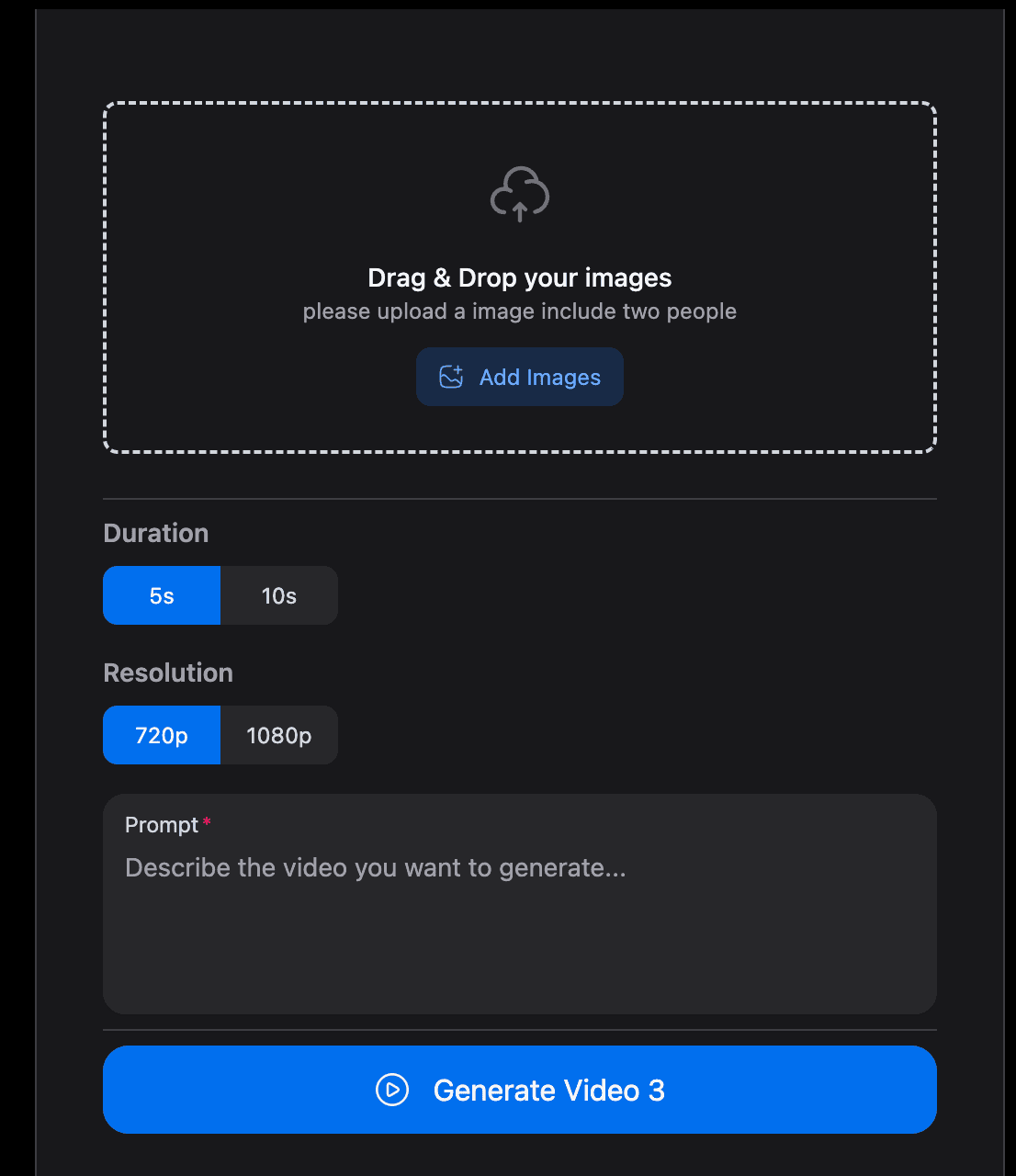
Drag & Drop your images
Upload one image with both people and their upper bodies visible
Your example stays visible while you set up.
See the motion before you generate
Your result will replace this example.

Example image
Upload to replace
Example video
Create an AI Handshake Video from One Photo
Create an AI Handshake Video from One Photo
Upload one image containing two clearly framed people and generate a short handshake animation. The effect is built for partnership announcements, presentation openers, team introductions, and other business-themed edits where posture and arm placement need to remain readable.
Choose a Photo with Enough Arm and Body Context
A handshake depends on the path between two hands. Since the generator starts from one image, it works best when the people, their shoulders, and the area in front of their bodies are already visible.

Keep Both People in the Same Image
The current effect accepts one file and does not merge two independent headshots. Use a shared photo or compose the pair into one image before upload.
Show the Upper Body
Waist-up framing gives the model a clearer sense of shoulder width, elbow position, and reach. Tight portraits often leave too little room to construct believable arm motion.
Use Similar Camera Distance
Place both people at roughly the same scale and depth. A foreground subject beside a much smaller background subject can lead to resizing or unstable posture.
Avoid Barriers Between Them
Tables, microphones, podiums, bags, and crossed arms can block the handshake path. Choose a frame with open space between the two bodies.
Build a Short Greeting Clip in Four Checks
Use the first generation as a motion draft. A professional-looking result comes from checking the source composition and the contact moment, not from adding broad marketing language around the clip.
Upload the Shared Photo
Choose a clear JPG or PNG that includes the intended pair. Confirm that the crop does not cut off shoulders, elbows, or the space where their hands need to meet.
Select Practical Output Settings
Match duration, aspect ratio, and resolution to the presentation, social post, or internal draft where the clip will appear.
Generate the Handshake
The dedicated effect supplies the greeting motion. You do not need to keyframe arm movement or build a separate transition in a video editor.
Inspect the Contact Frame
Pause around the moment the hands meet. Check finger count, sleeve edges, face stability, and whether one arm crosses unnaturally through the other person.
Use the Clip as a Visual Metaphor, Not Proof of an Event
A generated handshake can communicate collaboration or welcome, but it should not be presented as documentary evidence that two real people met, agreed to a deal, or endorsed each other.
Partnership Announcement
Use a clearly labeled AI visual as the opening beat for a collaboration post when no live event footage exists.
Team or Speaker Introduction
Create a brief greeting-style transition between profile slides, event titles, or internal presentation sections.
Concept and Storyboard Draft
Test framing for a future filmed handshake scene before booking a location, arranging wardrobe, or recording the real interaction.
Fictional Business Scenario
Illustrate a negotiation, welcome, or agreement inside a clearly fictional edit without implying a real-world endorsement.
Fix the Source Image Before Blaming the Motion
Handshake failures usually come from missing body information or an impossible starting pose. A new source image often improves the result more than repeating the same generation.
Hands Already Occupied
Phones, folders, cups, and bags force the model to remove or transform an object before creating the handshake. Start with empty, visible hands when possible.
Bodies Facing Away
People turned in opposite directions require a large pose change. Front-facing or three-quarter stances with open shoulders make the greeting easier to construct.
More Than Two People
A crowd creates ambiguity about the intended pair and adds extra arms near the contact point. Crop tightly around the two participants.
Formal Details That Must Stay Exact
Small badges, name tags, logos, and patterned ties can distort during motion. Review every branded or identifying detail before publishing.

AI Handshake Generator Questions
Details about supported inputs, professional use, and common motion problems.
Explore more AI video effects
Try another focused AI video effect, or browse the complete effects collection.
Create a Clear, Short Handshake Draft
Upload one well-framed image, leave room between the subjects, and review the hands and identities before using the clip in a presentation or announcement.