Product detail pages
Add a visual introduction beside your existing product photography. Use the clip to show mood, texture and shape; keep accurate still photos available for customers who need to inspect a label or a particular detail.
Start with an Amazon or Shopify product page. Review one product image, check the price, and create a short showcase video.
Reading product details uses no credits. Review the price before creating.
10 seconds · Portrait · Generated audio possible. Review the price before creating.Keep the work on one page. You choose when to read the link and when to start video generation.
Use a public Amazon product detail page or a Shopify product page. Click Read product when you are ready. Example links fill the input without starting a request.
Check the product name, image and selected variant. Use Adjust to choose another available photo or change the video settings. One image becomes the visual reference for the clip.
Review the displayed credit cost, then create your video. Styvid prepares the image and video direction before starting generation. If more information is needed, the flow pauses for your answer.
A slow reveal can emphasize shape. A quiet setting can suggest where a product belongs. Keep the movement simple enough for the product to stay recognizable.
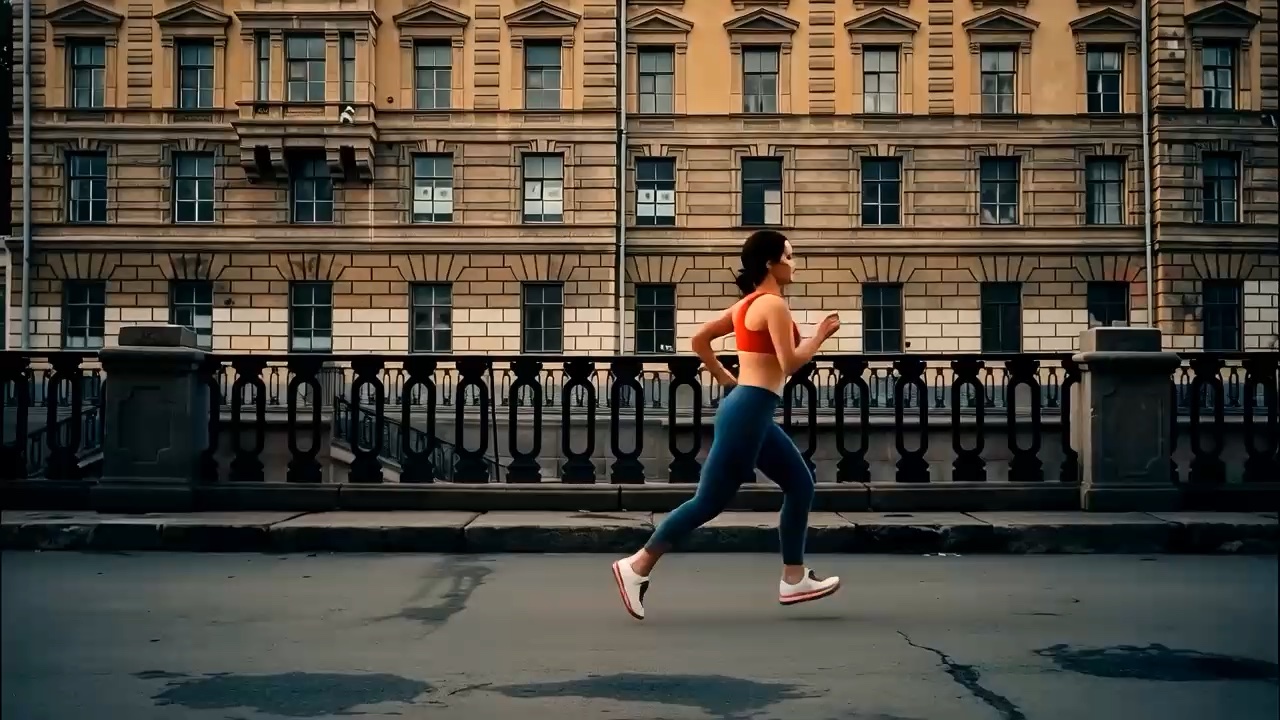
Style references from Styvid’s Candle Video Mockup tool. These are not outputs from this product URL workflow; your image and chosen direction determine your result.
Notice the restrained movement and product-focused framing. A clear outline and a readable front view give a short showcase something useful to communicate.
A simple environment gives a product context without a full commercial sequence. Review the generated setting and details before using a clip in customer-facing material.
Create a short motion asset for the places where a still image could use a little more attention.
Add a visual introduction beside your existing product photography. Use the clip to show mood, texture and shape; keep accurate still photos available for customers who need to inspect a label or a particular detail.
Turn an existing listing image into a short launch asset or a product update. Choose the available framing that suits your post, then review the downloaded result before publishing. Add your own campaign copy in your usual editor.
Explore a visual direction before arranging a dedicated shoot. Compare a restrained product reveal with a context-led idea, then decide which is worth developing. A generated clip is a creative draft, not a promise of campaign performance.
The link is a starting point for gathering product details and images. You stay in control of the image used for the video.
Use a link to one product, rather than a search page or storefront. Check the imported image against the selected color or variant. Some pages show access checks or location-specific content, so a public link may still need a manual image.
Use the product page on your store’s domain. When a link identifies a variant, review that variant and its image before generating. A password-protected store or a page that restricts access may not provide readable product details.
The video starts from one selected image, not a reconstruction of every image on the product page. Choose the view that best represents what you want to show.
Avoid tight crops, collages and distracting overlays. Leave some space around the silhouette so that movement has room without cutting into the object.
Check colors, packaging and variants before you create. If several products appear in a photo, choose a simpler image that makes the intended subject unambiguous.
Inspect logos, labels, proportions and any newly visible surfaces. AI-generated motion can change details; choose another image or direction if the result misrepresents the product.
This first version is designed for a short product showcase. Check the settings and current price in the generator before you start.
Choose one main image for each generation. Other imported images are alternatives to select, not a multi-image sequence.
Choose a 5- or 10-second clip at 768p, with portrait or landscape framing. Each generation creates one continuous clip without added captions. The model may generate audio; silence is not guaranteed.
Reading product details and preparing a plan use no credits. The current generation price appears before confirmation. Changing settings can change that price.
Practical answers about links, images, credits and the finished clip.
Use a public product detail page. Search results, collection pages and store homepages are not supported. Access checks, sign-in requirements and store restrictions can prevent reading. In that case, add product details and upload an image manually.
No. Pasting a link or selecting an example only fills the input. Click Read product to import the details. Video generation starts after you confirm the displayed price; product reading and planning do not use credits.
Yes. Review the selected product and use Adjust to choose an available image or upload your own. Check that it represents the intended variant. Updating an image or relevant setting requires a fresh plan before generation.
This version uses one selected image per generation. Imported alternatives help you choose a main image, but they are not combined into a slideshow, multi-view reconstruction or multi-shot advertisement.
No. This workflow creates a 5- or 10-second clip with possible generated audio at 768p. Add narration, music, captions or campaign graphics separately if your final placement needs them.
AI-generated motion can alter small text, logos, surfaces or proportions. Review the full clip before publishing. Use original product photographs for precise specifications and do not rely on generated views to establish unseen details.
After preparation, the product and video task are saved with a session link. Return to check the task. If you left before generation started, confirm the current price again to continue. Follow any on-screen instruction to keep the page open during preparation.
Those are intended uses for a reviewed product clip. Use images and product assets you have permission to use, check the result for accuracy, and follow the requirements of the destination platform. This tool does not publish the video for you.
Already have a photo, or want more guidance before generating? Continue with a focused tool or a practical guide.
Paste your link, click Read product, and review the image before creating your first clip.
Read my product link