AI Hug Video Generator
Upload one image that clearly shows both people and turn it into a short hug animation.
Drag & Drop your images
Upload one image with both people clearly visible
See the motion before you generate
Your result will replace this example.

Example image
Upload to replace
Example video
Create an AI Hug Video from One Photo
Create an AI Hug Video from One Photo
Upload one image that clearly shows both people and turn it into a short hug animation. The effect is designed for family memories, friendship edits, reunion posts, and other warm moments where recognizable faces matter more than dramatic camera movement.
Start with a Photo That Leaves Room for the Hug
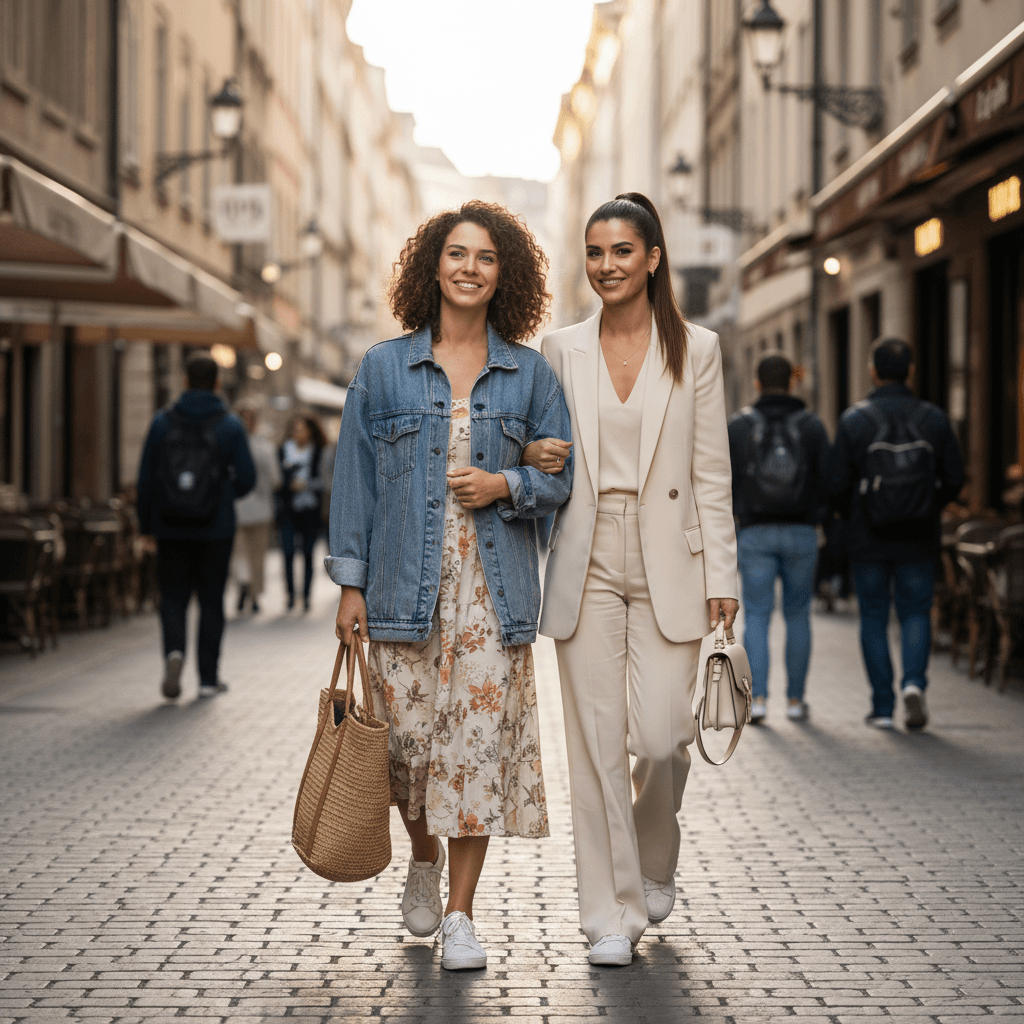
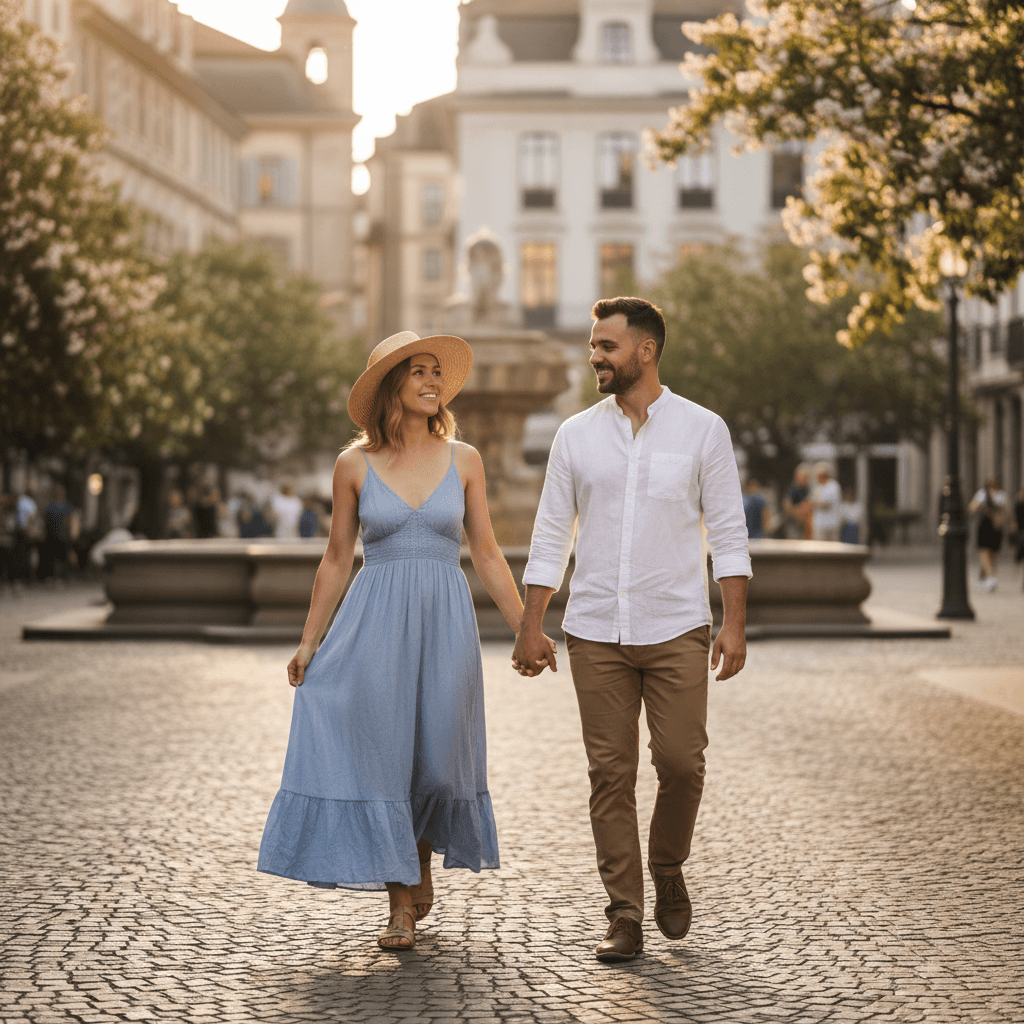
AI Hug accepts one image, so both people need to be visible in the same frame. A good source photo gives the model enough information to move shoulders and arms without guessing where a hidden person begins or ends.

Show Both Faces Clearly
Use a photo where neither face is covered by hair, hands, sunglasses, or another person. Similar face size and similar lighting make it easier to keep both people recognizable.
Include Shoulders and Arms
Waist-up or chest-up framing usually gives the effect enough body context. Tight face-only crops leave no reliable space for an embrace, while distant group photos make identity harder to preserve.
Leave a Natural Gap
A small amount of space between the two people gives the animation room to bring them together. Heavy overlap in the original photo can cause hands, sleeves, or shoulders to merge.
Prefer a Simple Background
Plain walls, outdoor blur, and uncluttered rooms are easier to keep stable than mirrors, crowds, railings, or patterned objects crossing the subjects.
Generate the Hug Without a Video-Editing Timeline
The page uses a dedicated hug effect rather than asking you to build motion frame by frame. You choose the source image and available output settings, then review the generated clip as a draft.
Upload One Shared Photo
Choose a JPG or PNG containing the two people you want in the scene. This effect does not combine two separate portrait files.
Check the Crop Before Generating
Confirm that faces, shoulders, and the space between the subjects remain visible. If the important body area is outside the frame, use a wider source image.
Choose the Output Settings
Select an available duration, aspect ratio, and resolution that fit the destination. Keep the first attempt short while you evaluate facial and arm consistency.
Review, Then Retry Deliberately
Look at identity, hands, sleeve edges, and background stability. When a result drifts, changing to a clearer source photo is usually more useful than repeatedly generating from the same difficult crop.
Where a Short Hug Clip Fits Naturally
The result works best as a brief emotional insert rather than a long narrative scene. Keep the surrounding caption honest about the clip being AI-generated when viewers could mistake it for a real event.
Family Memory Edits
Add a gentle motion beat between still photos in a birthday, reunion, or family-history montage without building a full animation sequence.
Friendship and Appreciation Posts
Turn a clear two-person portrait into a short visual for a thank-you message, farewell post, or friendship anniversary.
Photo Slideshows
Use the generated clip as one transition inside a longer slideshow. A short insert is easier to match with neighboring still images than an extended synthetic scene.
Private Creative Experiments
Test how pose, crop, clothing, and background affect two-person motion before deciding whether the result is suitable for sharing.
Know What Usually Causes a Weak Hug Result
A generated hug is an interpretation of one frame, not a recording of a real interaction. The model must invent hidden arms, body depth, and movement, so some source photos are inherently harder than others.
Cropped or Hidden Arms
When elbows and hands are outside the image, the model has to invent their path. This can produce extra fingers, fused sleeves, or an embrace that starts from an unnatural position.
Large Differences in Scale
If one person is much closer to the camera, the generated movement may change body size or pull one face out of position. Similar distance from the camera is more stable.
Busy Group Photos
Extra faces and overlapping bodies make it unclear which two people should move. Crop to the intended pair before upload whenever possible.
Profiles and Extreme Angles
Strong side profiles, tilted faces, and harsh mixed lighting give the model less identity information. A front or three-quarter view is usually a safer starting point.
AI Hug Generator Questions
Practical answers about source photos, generated motion, and responsible use.
Turn a Clear Two-Person Photo into a Hug Clip
Use one photo with visible faces and enough upper-body space, generate a short draft, and review the hands and identities before sharing.