AI Video Editor
Edit an existing video with prompt-guided AI models
Edit the Video You Already Have
AI video editing starts from real footage or an existing generated clip. The source provides the timing, camera movement, subject motion, and composition; your prompt tells the selected model what should change.
1. Upload a source clip
Start with an MP4 or MOV that already contains the movement, framing, or performance you want to keep. The editor reads the clip duration and checks it against the selected model's limits.
2. Choose an editing model
Select Wan 2.7, Gemini Omni Flash, HappyHorse, or Runway Aleph according to the clip length, reference-image needs, resolution options, and kind of transformation you are planning.
3. Describe one clear change
Write the desired result in plain language, such as replacing the environment, changing the weather, restyling the footage, modifying an object, or relighting the scene. Then review and download the generated edit.
Change the Scene Without Starting from Zero
Use the editor when the original action works but the visual direction does not. A focused instruction gives the model a clearer target and makes the result easier to evaluate against the source.
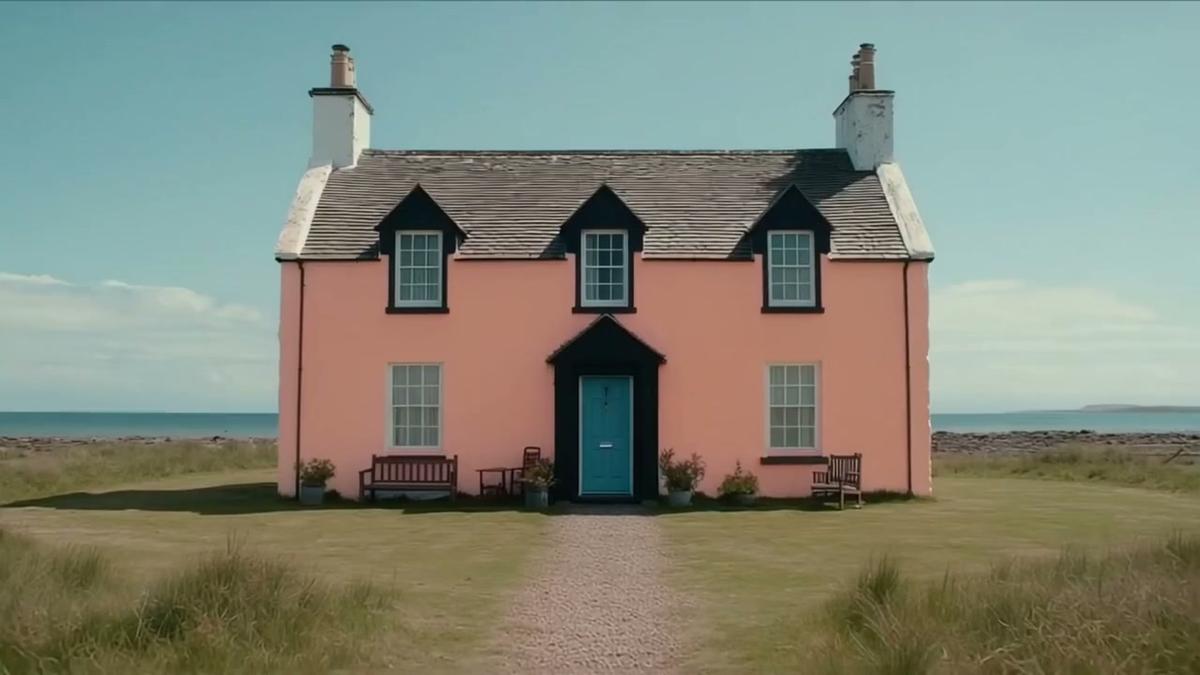
Replace backgrounds and environments
Move a subject from a plain street to a cinematic city, a snowy landscape, a studio set, a fantasy environment, or another location while asking the model to preserve the original movement and framing.
Modify objects, clothing, and visual details
Change the color or material of an object, replace a prop, adjust wardrobe, add a design element, or remove an unwanted visual detail without manually masking every frame.
Restyle lighting, color, and atmosphere
Turn daytime into evening, introduce warm cinematic light, create a seasonal look, shift the color grade, or apply a more stylized visual treatment across the moving shot.
Rework camera treatment and scene presentation
Use supported models for broader transformations such as reframing the visual emphasis, changing how the scene is presented, or creating a more dramatic cinematic interpretation of the existing action.
Choose the AI Model Around the Edit
The models share one editor interface, but they do not have identical input limits or controls. Choose based on the job rather than treating every video edit as the same request.
Wan 2.7 for precise short-form edits
Use Wan 2.7 for focused prompt-guided changes on 2–10 second clips. It supports 720p and 1080p output, an optional reference image, negative prompts, seed control, and model-aware audio settings.
Gemini Omni Flash for multimodal direction
Choose Gemini Omni Flash when a longer source clip or several visual references can help explain the intended world, subject, style, or scene. The current editor supports clips up to 30 seconds and up to five reference images.
HappyHorse for longer reference-guided edits
HappyHorse supports longer clips and up to five reference images, making it useful when visual references need to guide appearance, objects, style, or scene details across more footage.
Runway Aleph for cinematic transformation
Use Runway Aleph for prompt-led changes to environments, lighting, objects, character presentation, and cinematic treatment on short clips where the transformation itself is the creative focus.
Source Videos That Produce Cleaner Edits
The model can only work with the motion and visual information available in the upload. Cleaner sources and narrower instructions usually produce edits that are easier to control.
Use continuous movement
Choose a clip with one readable action or camera move. Frequent cuts, scene changes, heavy motion blur, and chaotic handheld footage make it harder for an edit to remain visually consistent.
Keep the main subject visible
A clear subject, useful lighting, and limited occlusion give the model more information to preserve. Tiny subjects or crowded frames can make local changes less predictable.
Match reference images to the request
When the selected model supports references, upload images that directly show the desired clothing, character, object, palette, or environment. Unrelated references can compete with the written instruction.
Ask for one primary transformation
A prompt such as “change the street into a snowy night while preserving the rider and camera motion” is easier to interpret than a long list of unrelated changes to subject, action, setting, style, and framing.
Useful in Real Creative and Production Workflows
AI video editing is most valuable when reshooting or regenerating an entire clip would be slower than modifying a direction that already works.
Social videos and creator content
Reuse a strong performance with a new season, location, visual style, or campaign look instead of filming every variation again.
Product ads and marketing variations
Change product color, surrounding environment, lighting, set design, or audience-specific styling while keeping the approved movement and pacing of an existing shot.
Film concepts, previs, and creative testing
Explore weather, time of day, environment, production design, and alternate scene treatments before committing to a costly final shoot or manual VFX workflow.
Repurposing and localization
Adapt an existing clip for another market, campaign, or platform by changing visible context and art direction while retaining the source performance. Always review identity, text, brand, and cultural details before publishing.
AI Video Editor FAQ
Practical answers about editing existing footage with prompts, models, reference images, audio, and credits.
Related AI video tools
Continue the workflow with a focused tool for generation, editing, enhancement, or motion control.
Edit Your Existing Video with AI
Keep the motion that already works and change the scene, object, style, lighting, or atmosphere with a focused written direction.