0 credits
1

Upload a source image

Start with a product photo, portrait, artwork, UI screen, or campaign visual.

2

Add motion direction

Describe the camera move, action, mood, sound, and details the model should keep stable.

3

Generate and review

Create a short draft, check whether the image works as motion, then refine the prompt.

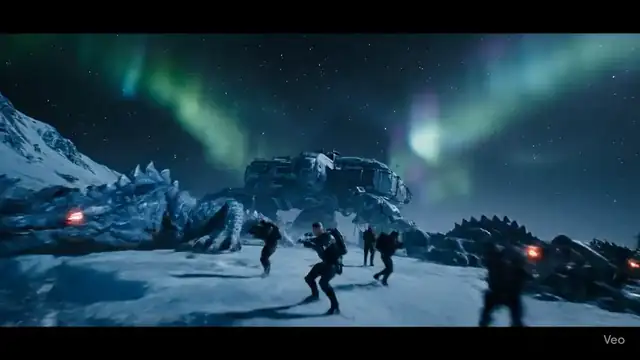
Image-to-video drafts for products, ads, apps, and social posts

Upload an image, add a short motion prompt, and generate a video draft that keeps the original visual reference in view.

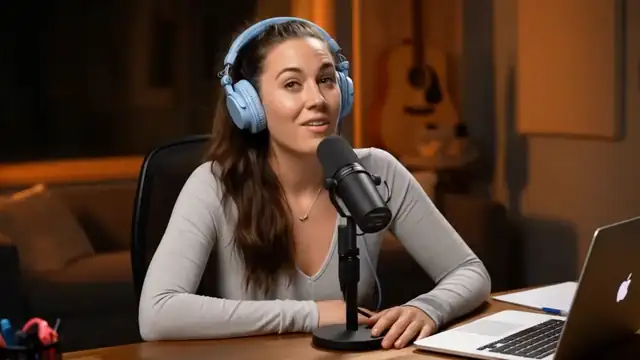
UGC Product Spokesperson

Turn one product or creator photo into a direct-response UGC clip with natural speech and a clear product hook.

Use this case

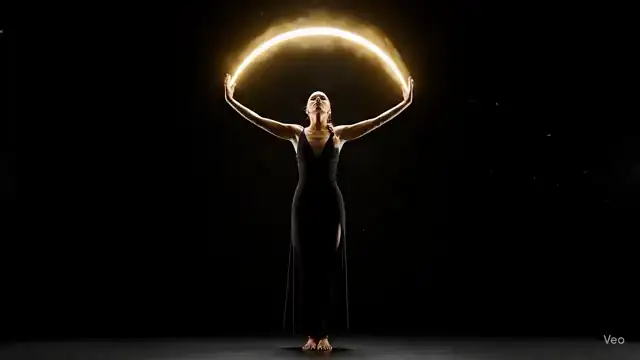
Beauty Voiceover Ad

Create a polished beauty or skincare ad with product close-ups, premium lighting, and a confident voiceover.

Use this case

Amazon Product Demo

Convert a packshot into a clear product demo clip with problem-solution pacing and clean commercial audio.

Use this case

App Launch Ad

Make a short launch-style ad from an app screenshot, dashboard image, or product UI hero frame.

Use this case

Create motion from the image you already have

Image-to-video fits the moment when a visual asset exists, but the final video does not. The image defines the subject, style, and details; the prompt defines what should move, how the camera should behave, and what the viewer needs to understand.

Keep the uploaded image as the source of truth

Image-to-video is strongest when the subject already exists. A product packshot, portrait, app screen, or artwork gives the model visual anchors for shape, color, identity, layout, and style. The prompt can then focus on motion instead of describing everything from zero.

Turn one static asset into a reviewable draft

Use the first output to judge camera movement, pacing, product readability, and whether the idea feels right for the placement. This is useful before filming, commissioning edits, or asking a team to approve a campaign direction.

Compare different motion angles quickly

The same image can become a product reveal, creator-style ad, app launch teaser, social hook, or simple demo. Generate a few versions from the same source image to see which direction deserves more budget or production time.

Protect details that matter

A clear upload helps keep packaging, UI, outfits, facial identity, object shape, and visual style more consistent. The prompt should call out which details must remain readable and which parts can move, transform, or receive camera motion.

Preview the kind of motion your image can become

Keep the draft close to the placement you are testing, then use the generated clip to check framing, readability, identity, and whether the image has enough visual information for the scene.

Built for visual assets before the final edit

Use this workflow when the image already carries the subject and style, but you still need motion for a feed post, product page, launch clip, review deck, or paid social draft. The first output is not the end of the creative process; it is the fastest way to see what should be refined next.

Product marketers

Animate ecommerce packshots, feature images, hero renders, and launch visuals into short clips for ads, product pages, and review decks.

Creators and agencies

Turn one reference image into a social-ready draft that clients, editors, and stakeholders can react to before a full shoot or edit.

App and SaaS teams

Use UI screenshots or product mockups to create onboarding clips, launch teasers, feature explainers, and waitlist creative.

Artists and brands

Bring illustrations, campaign stills, mood boards, or brand visuals into motion while keeping the original visual direction recognizable.

Image-to-video questions

Quick guidance on uploads, models, credits, downloads, and commercial use.

This image-to-video AI generator supports which models?+

We support Veo 3.1 Fast, SeedDance, and Kling. Each model has unique strengths - Veo for speed, SeedDance for artistic effects, and Kling for controlled motion.

Can I use image-to-video without signing up?+

Styvid keeps the first image-to-video flow simple. Some free or low-cost trials may be available without extra setup, while higher-quality models, repeated generations, and saved history require signing in.

Is there a free image-to-video option?+

Yes. Styvid is free to start, and available trial credits can be used to test image-to-video before choosing a paid plan or buying more credits.

Can I generate image-to-video without credits?+

Most model runs use credits because each generation has provider cost. If a free trial is available on your account or session, Styvid applies it before asking you to upgrade.

Will my image-to-video result have a watermark?+

Downloaded Styvid generations are designed for clean, watermark-free use when the selected model and plan allow it.

What image formats can I use?+

You can upload JPG, PNG, and WebP images up to 5MB. For our AI image-to-video generator, use high-quality images with clear subjects.

How long does it take to generate a video?+

Video generation typically takes 1-5 minutes depending on the model selected and video length. Veo 3.1 Fast is the quickest option.

Can I use videos commercially?+

Yes, you have full commercial rights to use your generated videos for any purpose, including social media, marketing, and client projects.

What video resolutions are available?+

We support various resolutions from standard definition up to 4K, depending on your subscription plan and selected model.

Is there a limit on video length?+

Video length varies by model - from 3 seconds up to 5 minutes. Check each model's specifications when selecting your options.

How does pricing work?+

Each video generation consumes credits based on the model and length. We offer various plans to suit different needs, from casual creators to professionals.

Can I cancel my subscription anytime?+

Yes, you can cancel your subscription at any time. Your access will continue until the end of your billing period.

Turn your image into a video draft

Upload a clear image, describe the motion you want, and generate a clip you can review before the final production decision.

Upload image