Ceiling Fan Outfit Transition
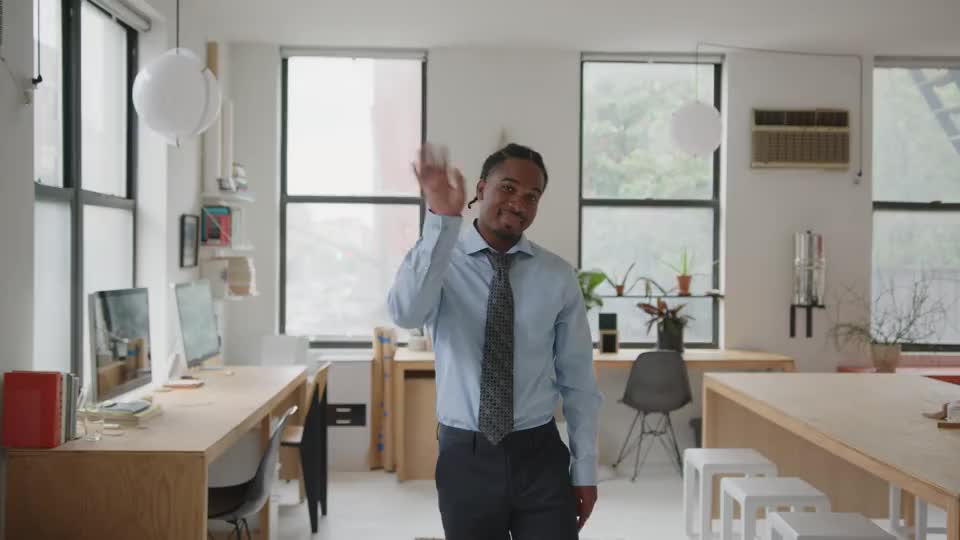
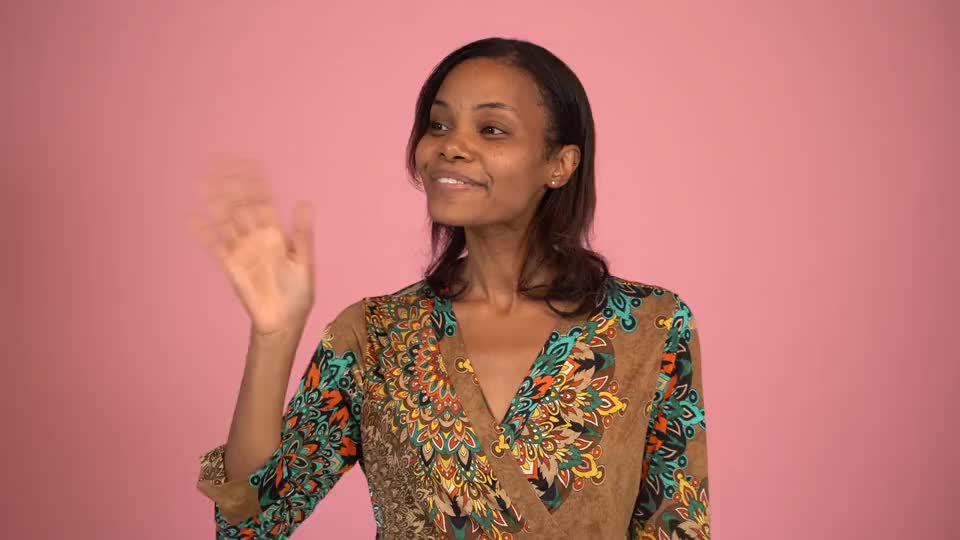
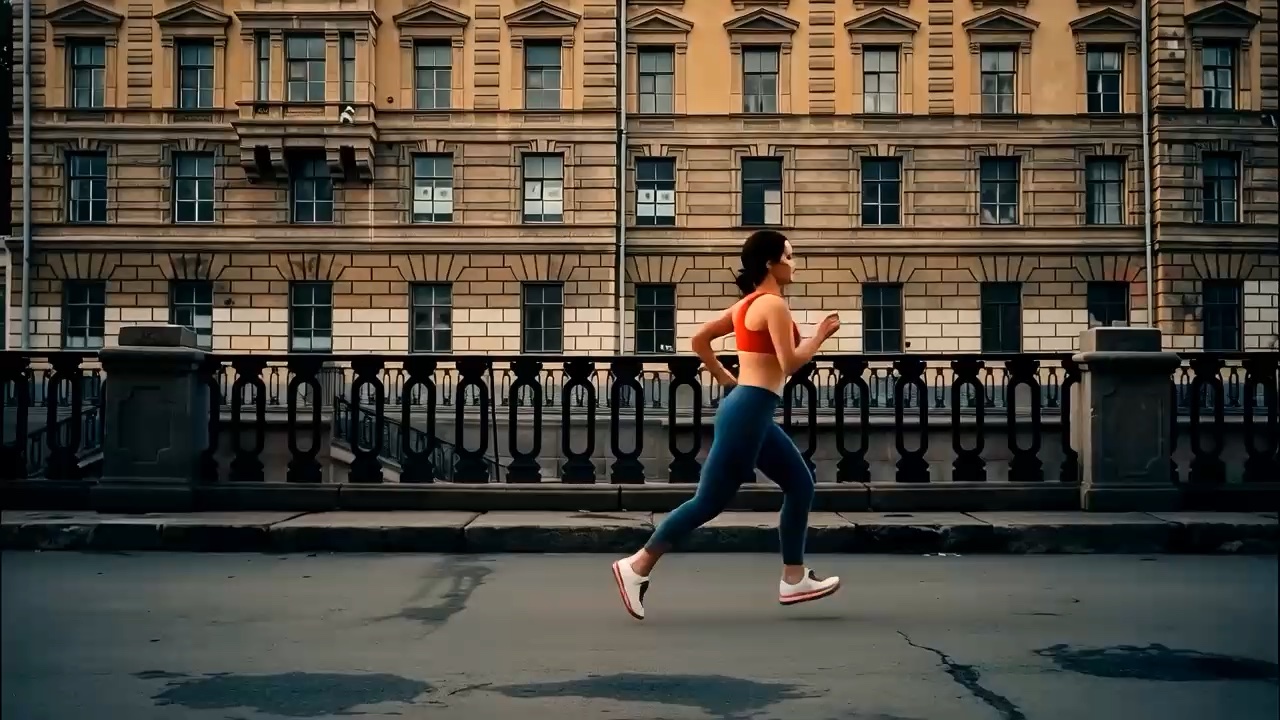
Use five everyday outfit photos of the same adult; the first photo guides identity.
Upload five ordinary full-body outfit photos of the same adult in playback order. Backgrounds and poses can differ; we place the looks in one scene, so no ceiling-fan photo is needed. The first photo sets the person’s identity. Clothing-only product images are not supported.
Look 1
Look 2
Look 3
Look 4
Look 5
Original TikTok reference
Five everyday outfit photos, one fan transition
Styvid’s ceiling-fan outfit effect uses five ordered full-body photos of the same adult. The system first prepares five images in the template scene, then generates a 10-second, 768p video and adds the template music. The complete workflow costs 13 credits. Use the five default examples or replace them with photos of your own outfits.
Bring the clothes, not a prepared film set
Photograph the person wearing each outfit. Different rooms, backgrounds and standing poses are accepted; you do not need a ceiling fan, carpet, overhead camera or lying pose. Input order sets outfit order, and the first photo supplies the common identity reference for all five prepared scenes.
Read the defaults and source clip as examples
The default photos already share a scene, but your uploads do not need that background. The original TikTok clip illustrates the intended fan-cover transition. Your result is newly generated from the references, not a direct edit of that performer or a guarantee of identical movement.
Choose your outfits, then generate
Prepare five clear views of one person before starting the paid workflow.
Use the defaults or replace all five looks
Upload JPEG, PNG or WebP photos into the positions in playback order. Each position can be replaced or restored independently. To feature another person, replace the whole set with that adult’s outfit photos instead of mixing their image with the default performer. Unchanged defaults will use the example person and clothes.
Check the first face and every outfit
Choose a clear first photo because it guides identity across the sequence. Check that all five images show the full body and the clothing you want to feature. Backgrounds and standing poses may differ. Once uploads finish, confirm 13 credits; the system prepares the five scenes and then generates the video.
Review the changes before downloading
Watch the complete result, particularly where a blade crosses the face or body. Check that the intended looks appear in order and compare colors, silhouette and facial features with your originals. Review the music and rhythm too; download when the result suits your use.
Ordinary outfit photos are enough
You provide the person and clothes. The system creates the shared fan scene, so there is no need to recreate the example room in your photographs.
Make the first identity reference clear
Use one adult throughout, with an unobstructed face in the first image. Avoid heavy face filters, sunglasses that hide most features, extra people and tiny subjects. A clear first reference helps the system interpret the person, but does not guarantee an exact face in every frame.
Show each outfit on the full body
Choose photos where the clothing, arms and legs are visible. Simple standing poses work; the five poses and backgrounds do not have to match. Keep coats, skirts and trousers within the frame. Large bags, crossed limbs or furniture hiding the outfit leave more details for the model to infer.
Use worn outfits rather than garment photos
A flat lay, hanger shot or isolated product image is not a replacement for a full-body outfit photo. The workflow adapts the clothes already shown on the person; it does not use a separate clothing catalogue. Fine prints, logos, jewelry and fabric texture can change during scene preparation or motion.
Give each outfit a reason to appear
A short sequence is easier to follow when the changes belong to one idea.
Wardrobe stories and styling experiments
Use five looks for a color progression, a casual-to-evening story or variations on one style. Put a clear face in the first photo to anchor identity, then choose an order with a recognizable beginning and final outfit. You can gather the photos from different settings without restaging them under a fan.
Creative references for short-form edits
The result can help communicate an outfit-change concept before a larger video edit. Treat the AI clip as a creative draft. If exact fabric construction or product detail matters, show the original outfit photographs alongside it.
Review the fan, the person and the rhythm
Earlier experiments used five scene images prepared in advance. They showed the intended outfit order and broadly retained the fictional performer, but also had timing drift, abrupt pose changes and imperfect blade coverage. The current workflow adds automatic scene preparation from ordinary outfit photos; those earlier results do not prove equal quality for every new upload. One experiment was manually retimed afterward, and that manual correction is not applied automatically.
Check the frames between the outfits
A clean still frame does not establish a clean transition. Watch for bending fan blades, extra fingers, changing facial features or clothing that melts gradually instead of changing under cover. Pay particular attention when the face or torso is partly hidden.
Allow for different musical timing
The workflow adds the template soundtrack, but generated changes may land before or after the source clip’s beats. If exact beat placement is essential, plan to adjust the finished clip in an editor. Do not assume another generation will automatically fix every timing issue.
Arrange your five looks
Check the first face, five worn outfits and playback order. Return to the generator to use the examples or replace them with ordinary full-body photos.
Questions about ceiling-fan outfit videos
Inputs, timing and credit use for this template.