How to Transfer Motion from a Video to an Image with AI
styvid Team
4/20/2026
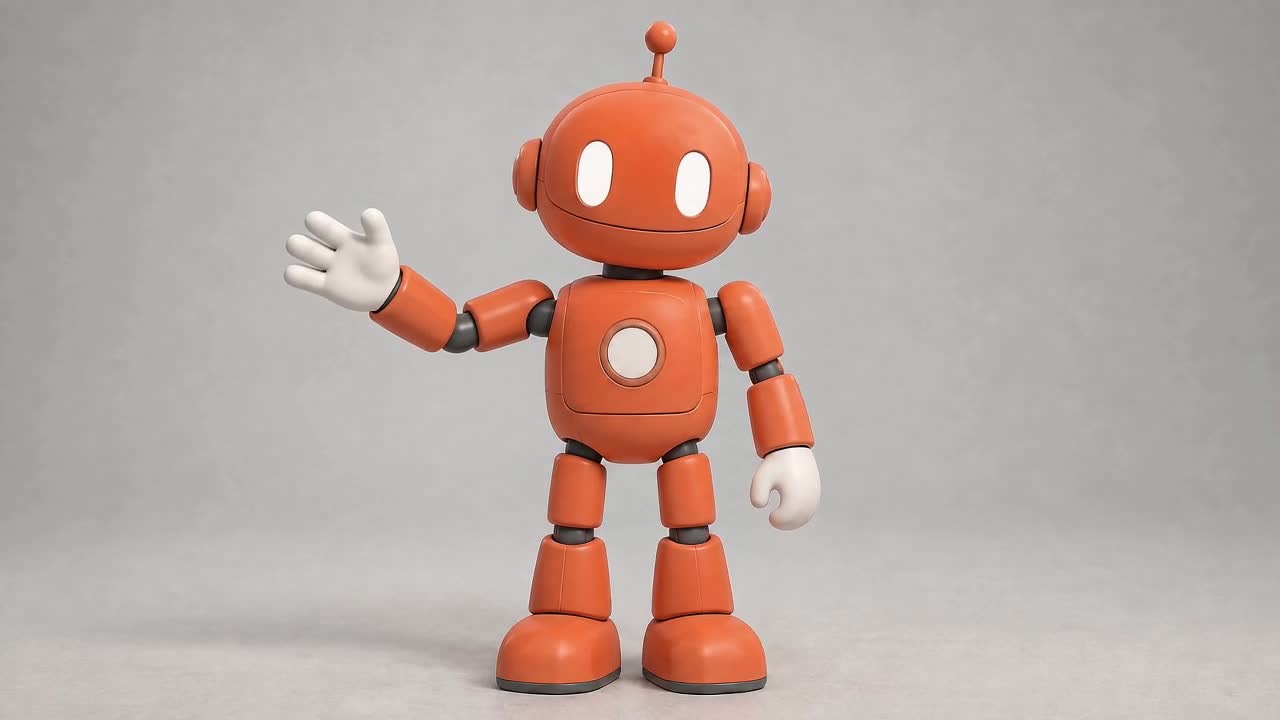
To transfer motion from a video to an image, provide a clear subject image and a reference clip containing the action you want. The image defines the appearance; the reference supplies the gesture and timing. Then inspect both movement and identity in the generated result.
This guide uses an original robot image and a short waving clip to show what that workflow can do, including a detail that did not stay identical. Updated September 12, 2026 with a new generated example.
For a dedicated two-input workflow, open Styvid Motion Transfer AI. If you only have a photo and want the model to invent the movement, compare motion control with image-to-video first.
What we tested
We made a blue-green robot waving reference, then asked an orange robot from a separate image to follow the gesture. Both video requests used Seedance 2 through its model API, 720p, 16:9, four seconds, and audio generation turned off. The files returned were 1280 × 720 at 24 fps and approximately 4.04 seconds each.
This is a Seedance 2 multimodal-reference example. The dedicated Motion Control tool uses a separate model and may produce different results. It illustrates the input roles and review process; it is not a benchmark of every motion-transfer model.
1. Prepare the character image
Our source is an original AI-generated orange toy robot standing in a neutral studio. Its full body is visible, its hands are separated from its torso, and the background is simple.
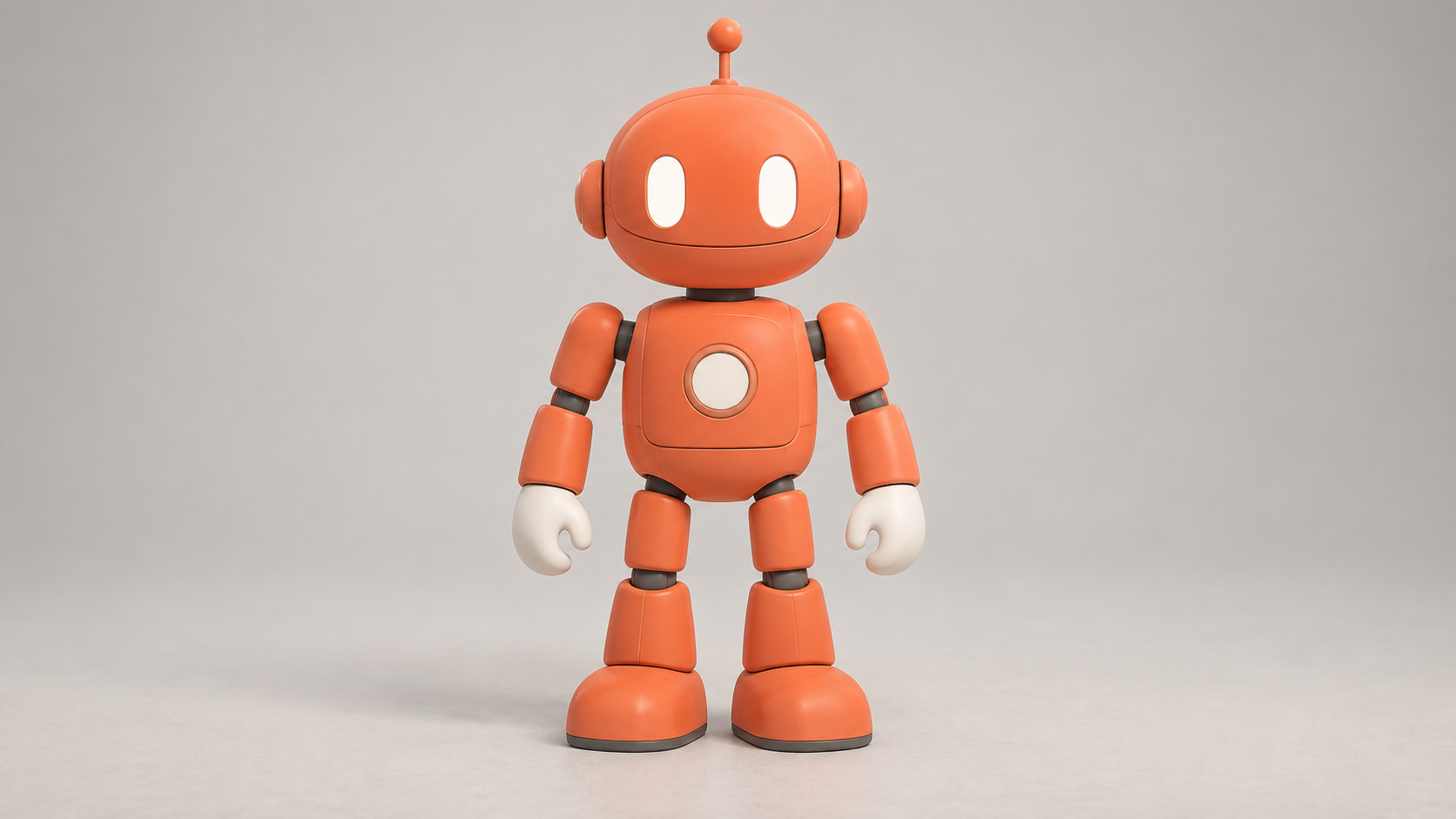
Before choosing your own image, identify the details you want to retain. In this example, they are the orange color, white oval eyes, single antenna, round chest inset, and mitten-shaped hands. A readable silhouette makes it easier to check whether those details survive the action.
Use an image with enough room for the planned movement. If the reference raises an arm above the head, a tightly cropped headshot does not show the body information or space that action needs.
2. Choose a reference with one readable action
The reference contains one robot raising its right hand, waving, and lowering it. The camera stays in a full-body view and the feet remain in roughly the same position.
For an initial test, choose a single action such as a wave, step, turn, or nod. Avoid combining a fast camera move, several people, cuts, and a complex gesture before you know how the tool handles your subject.
Our reference is synthetic and was made for this tutorial. You can use your own footage when you have the right to use it. Pick the action because it fits the clip you want to create, not simply because the source video looks impressive.
3. Assign the image and video to different roles
On the Motion Control page, use the character-image and reference-video upload fields. The prompt is optional there; use it to clarify which appearance to preserve and which motion to follow.
For the Seedance 2 example shown here, we supplied the orange robot as a reference image and the blue-green robot clip as a reference video in multimodal mode. We did not use the subject image as a first frame. If you reproduce this example through Seedance 2, select the reference workflow and check the available controls before submitting.
Our exact transfer prompt was:
Use Image 1 as the exact orange robot character and studio appearance. Use Video 1 only as the reference for the robot arm gesture, timing and pose sequence. Animate the orange robot raising its right hand, waving and lowering its hand following the reference. Preserve the orange head shape, white oval eyes, single antenna, circular chest inset and white mitten hands from Image 1. Do not copy the blue color or body design from Video 1. Full body remains visible, feet planted, locked camera, gray studio. One continuous shot, no text, no additional objects.
Notice the separate instructions for appearance and movement. Asking for the reference video's whole appearance would conflict with keeping the orange robot from the image.
4. Compare the result with both inputs
We inspected sampled frames across both clips. The orange robot performs the broad gesture sequence and retains its orange appearance, white eyes, antenna and circular chest detail. It does not copy the reference robot's blue-green body.
However, the raised hand gains visibly separated fingers, while the source image has a simpler mitten shape. That is a useful distinction: the motion transfer is recognizable, but the character is not preserved exactly. Small head and body movements also differ, so this example does not establish frame-for-frame motion matching.
| Check | What this example shows | | --- | --- | | Main gesture | Raising, waving and lowering are visible in the output | | Main appearance | Orange body, white eyes, antenna and chest inset remain recognizable | | Fine hand design | Changes during the raised-hand gesture | | Reference timing | Broad sequence follows the source; exact alignment was not measured | | Framing | Full body stays visible in sampled frames |
5. Make the next adjustment specific
Choose the detail that matters for your intended use. A small change in hand design may be acceptable for a quick character greeting; it may be unacceptable for a character with a fixed design sheet.
For this robot, a useful next test would be a reference with a simpler hand pose or a stronger instruction to retain mitten-shaped hands. We have not run that additional comparison, so treat it as a proposed revision rather than a demonstrated fix.
Other problems call for different changes:
- If the wrong subject follows the action, use a reference containing one clear performer.
- If limbs leave the frame, widen the source image or choose a compatible reference crop.
- If the output borrows the reference's clothing or colors, explicitly identify the appearance source.
- If you want only a subtle camera move and have no reference, consider ordinary image-to-video instead.
Use the movement for a specific shot
A greeting gesture can serve as a character introduction or an opening beat in a presentation. Those are example uses; the right choice depends on your project. Decide how much of the action you need before generating a longer sequence.
For a simple character introduction, you might want the robot to enter, greet the viewer, then hold still for a title. This test covers the greeting only. Any entry movement, title, audio or following shot would need its own instructions and review.
Create a motion-transfer clip with your own image and reference.
Frequently asked questions
Is motion transfer the same as image-to-video?
Both can animate an image, but motion transfer uses a separate video as an action reference. Ordinary image-to-video can begin with the image and a written motion request alone.
Can it copy a gesture while keeping my character?
That is the goal. Our example retains the main character appearance while following a waving sequence, but the hand design changes. Check identity and movement separately.
Do I need a dance video?
No. The reference can contain another readable action, such as walking, turning, nodding or waving. The example here uses a greeting.
Is the example generated by Styvid's dedicated Motion Control tool?
The new robot example was generated with Seedance 2's multimodal reference inputs through the model API. The dedicated Motion Control page uses a different model. Both offer an image-and-reference-video concept, but the exact settings and results are model dependent.
Can I start this from Creator?
This tutorial links to tools that accept both an image and a reference video. Creator's current article entry carries a written brief; its image upload alone does not reproduce this two-input workflow.