AI Talking Photo
Make a portrait speak using short text or a 1–10 second recording. Generate a talking photo in its original setting. Prototype; review voice and mouth timing.
Person photo
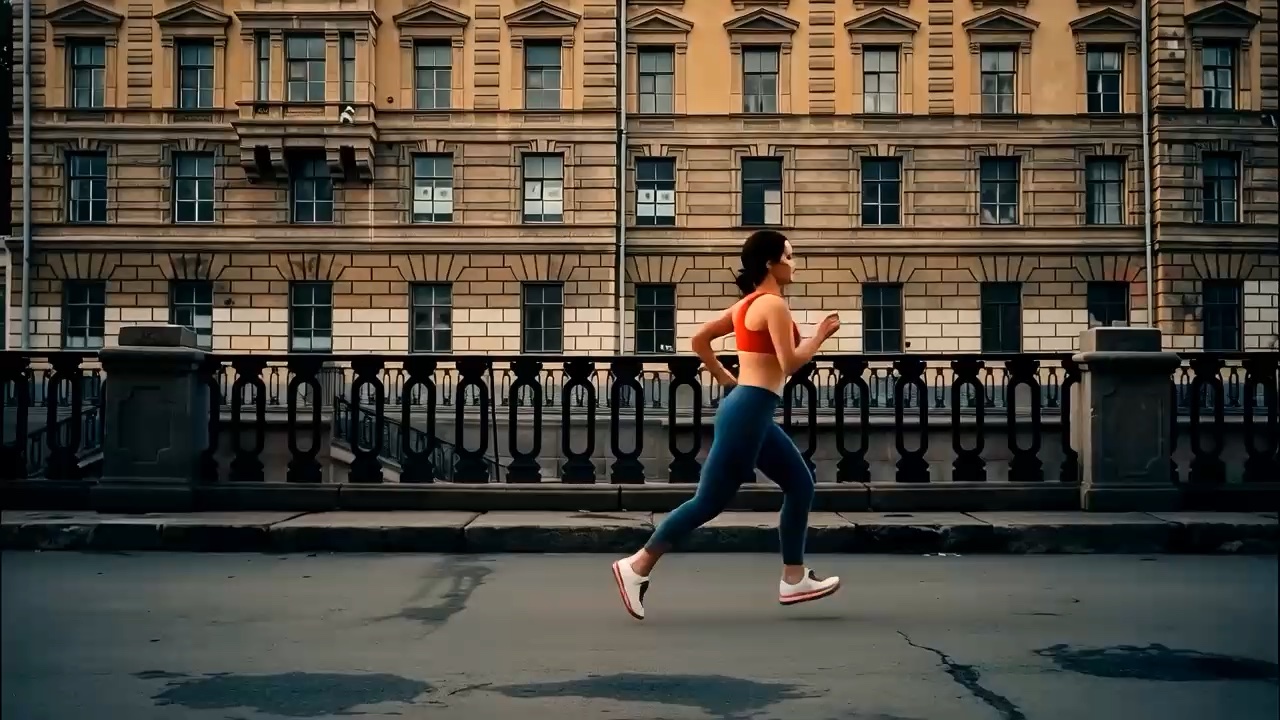
Generated example · Play with sound
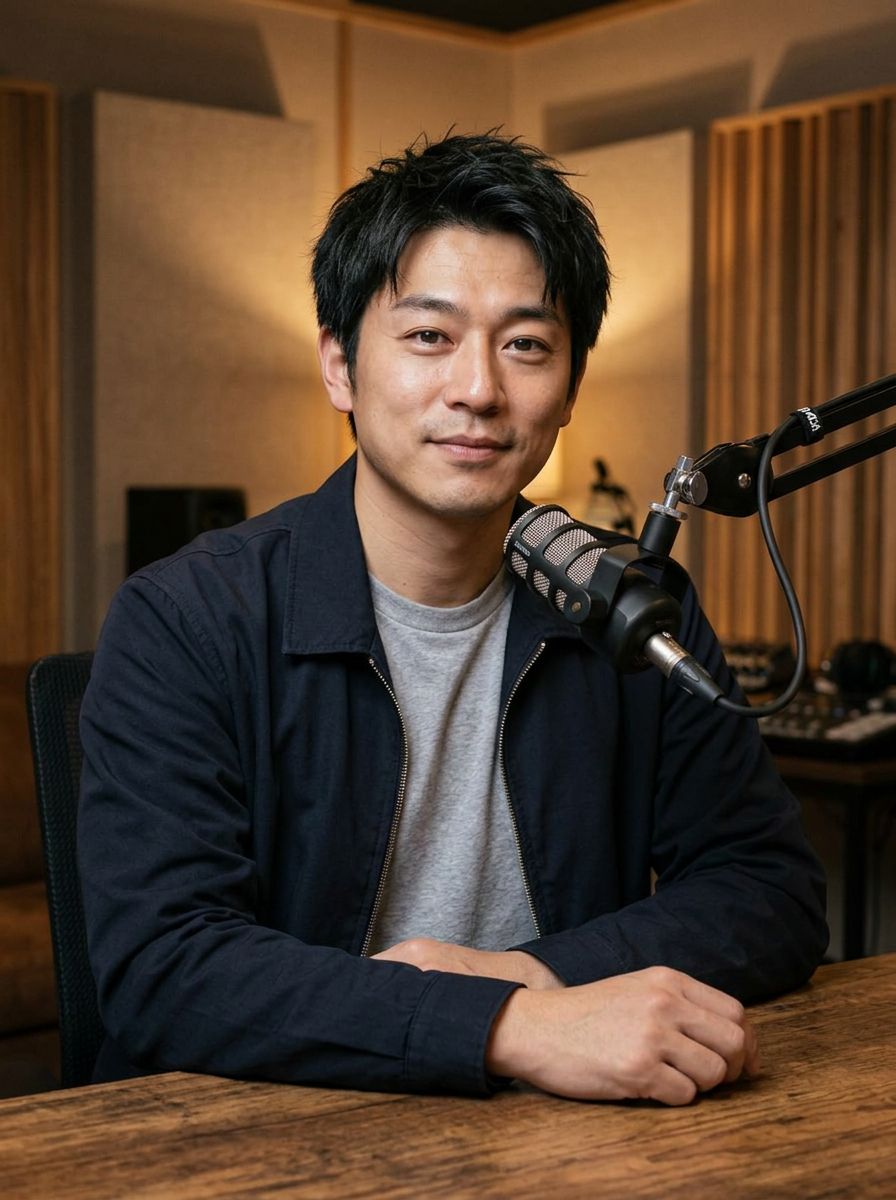
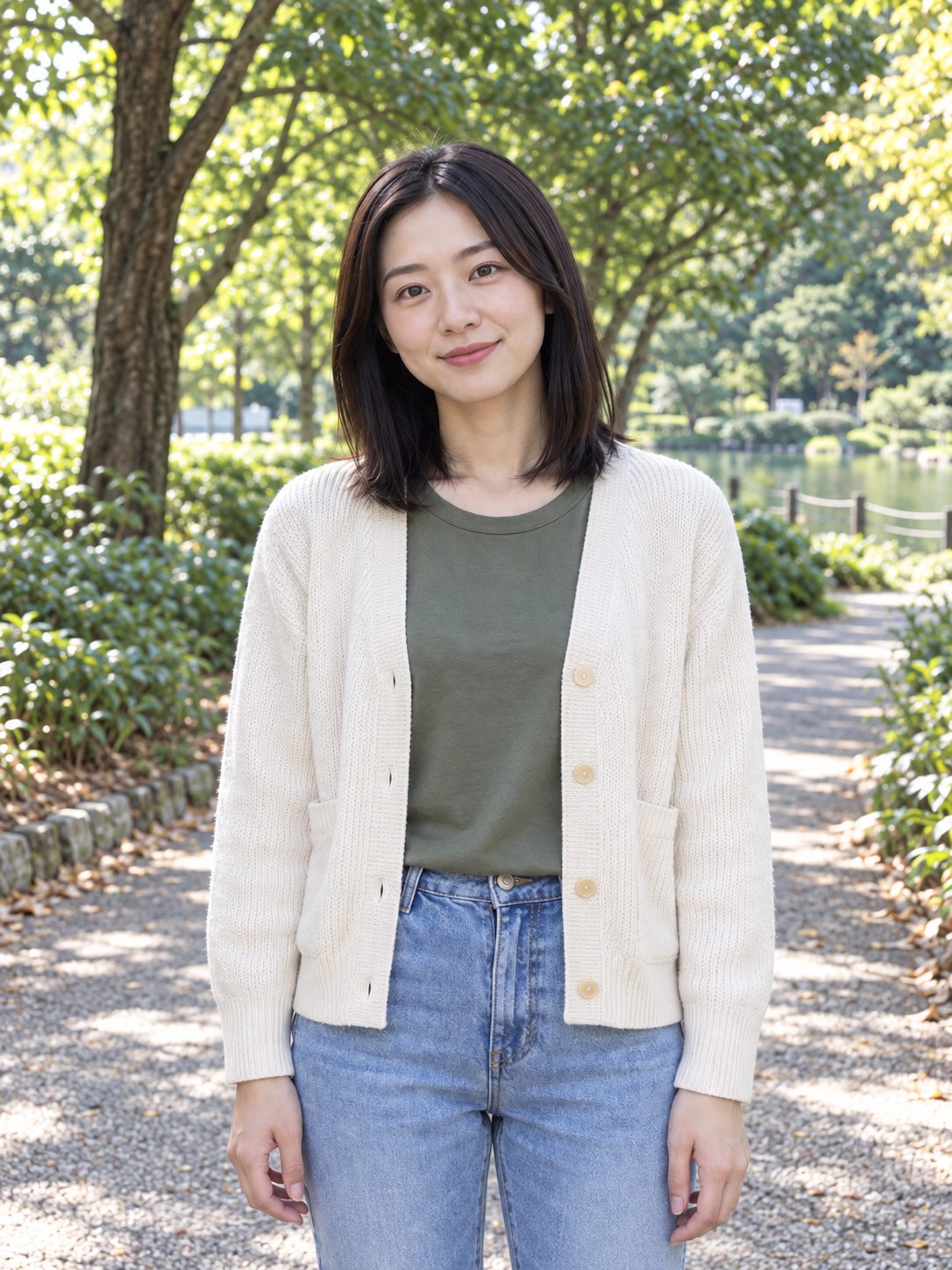
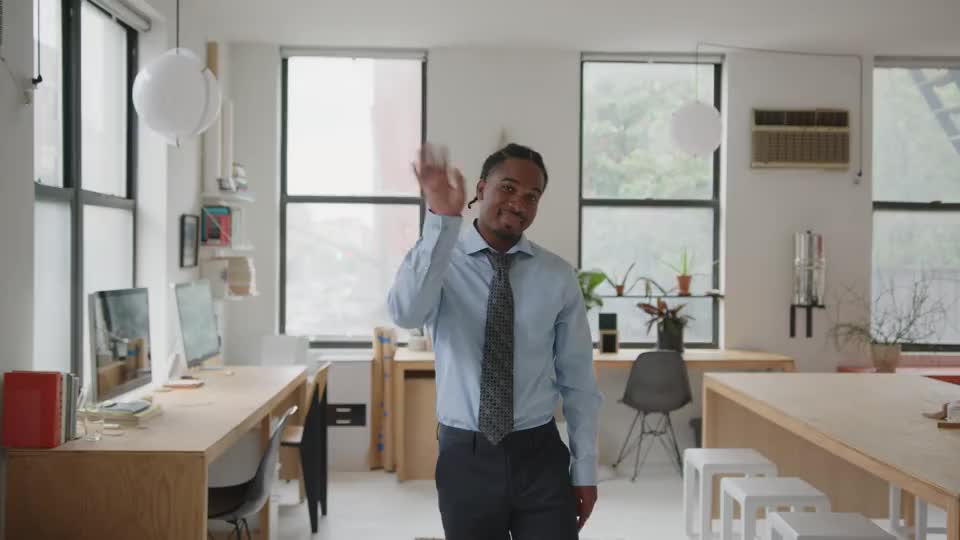
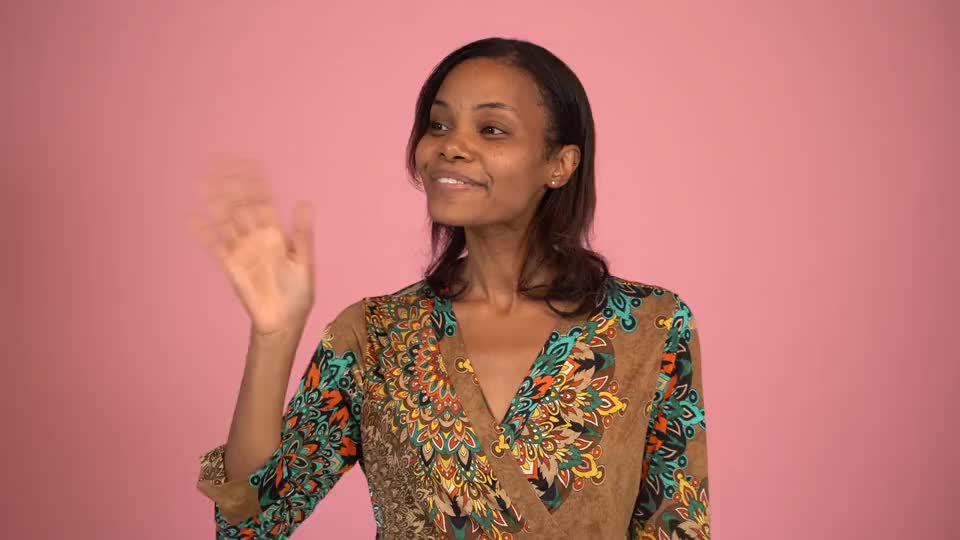
A real test using the default portrait. The example audio is in English; changing the interface language does not translate it. Review captions, mouth timing and identity.
Give a spoken welcome a face
AI Talking Photo turns a single portrait into a short video of that person speaking to the camera. Use a written line when you need a quick draft, or a recording when the delivery matters.
A message in the original setting
The animation is directed to retain the photo’s setting with natural blinking, small head movements and restrained gestures. A familiar background can make a welcome feel connected to the person or place being introduced.
Two ways to supply the words
Text mode generates speech from your script. Recording mode uses the audio you supply, including its voice and phrasing. A photograph supplies appearance; it does not contain enough information to reproduce someone’s voice.
One idea per clip
Treat the result as a short speaking moment: a greeting, an opening line or a single update. Longer explanations work better when you prepare the wider video separately and use this clip as an introduction.
Start with the moment your viewer needs a voice
Choose the destination before writing the line. A welcome on a course page and an update in a social feed need different amounts of context, even when both use the same portrait.
Open a lesson with a clear invitation
When a new lesson needs a personal introduction, prepare a line such as “Today, let’s practice one simple lighting setup.” Place the reviewed clip before the demonstration rather than trying to fit the lesson into a few seconds.
Introduce yourself before the details
When refreshing a profile or portfolio, try a short statement of who you are and what visitors can explore. The clip can sit beside a longer written introduction, where the text carries names, credentials and links.
Make a timely update easy to follow
For an event reminder or a community announcement, lead with the change or next action. Use the clip at the start of a feed post, then put exact dates and practical details in the accompanying text.
Choose between a written line and your own delivery
The choice depends on whether you are testing the message or already have a voice performance you want to keep. Neither mode requires recording a new on-camera video.
Draft the line before polishing it
Use text mode to try a concise welcome or introduction, up to 180 characters. Read it aloud first: the character limit is an input limit, not a promise that every script will fit naturally into every duration.
Record when emphasis matters
Upload a 1–10 second MP3, WAV or FLAC file, up to 20 MB, when a pause, name pronunciation or familiar voice matters. Choose one clearly audible speaker and trim excess silence before uploading.
Keep the words separate from directions
Write the words you want spoken, not camera instructions or notes such as “sound excited.” For a more deliberate delivery, record the line yourself and listen to the complete audio before using it.
From a portrait to a speaking clip
Start with the included example to understand the controls, then replace the portrait and message for your own project.
Choose a clear portrait
Upload one adult portrait in JPG, PNG or WebP. A front-facing or gently turned face with an unobstructed mouth gives a clear reference. Check the background too, since this effect is directed to keep the original setting.
Add text or recorded speech
Choose text and a 5-, 8- or 10-second duration, or upload a supported speech recording. Recording length selects the smallest fitting duration tier. Confirm the active mode and displayed credit quote before generating.
Listen before you download
Play the completed video with sound. Check the spoken words, timing and face across the whole clip, especially the final phrase. Download the result you have reviewed and add any surrounding text or edits in your publishing workflow.
Help the message remain the focus
A useful first attempt combines a simple image with a sentence that has room to breathe. Changing one input at a time also makes it easier to understand a result.
Keep the mouth easy to see
Avoid hands, microphones, scarves or heavy shadows over the lips. A clear face is more useful than a busy full-body scene for a direct-to-camera message. Start with a portrait where the person already faces the viewer.
Leave room for a natural ending
Use a complete short sentence rather than a list of points. If your line sounds rushed when read aloud, shorten it or choose a longer available text duration; do not assume the model will compress it cleanly.
Review the video as a draft
This prototype can change facial details, miss mouth timing or add unwanted or garbled captions. Compare the face with the original photo and listen for altered wording before placing the clip in a public page or post.
Choose the setting that serves your message
Keep Talking Photo for a direct address in the source setting. If the visual idea depends on a studio or musical performance, choose the matching workflow before preparing your assets.
A studio introduction
AI Podcast Video adds a single-host studio scene and microphone. Choose it for an episode teaser or a host introduction when the podcast setting is part of the intended visual.
A musical line
AI Singing Photo takes a recorded vocal song excerpt. Choose it when melody and sung phrasing matter; the spoken-text field here is designed for a short spoken message.
Frequently asked questions
What each input controls and what to check before using the result.