AI Podcast Video
Create a single-host podcast scene from a portrait and short text or recorded speech. The AI adds a microphone and studio setting. Prototype.
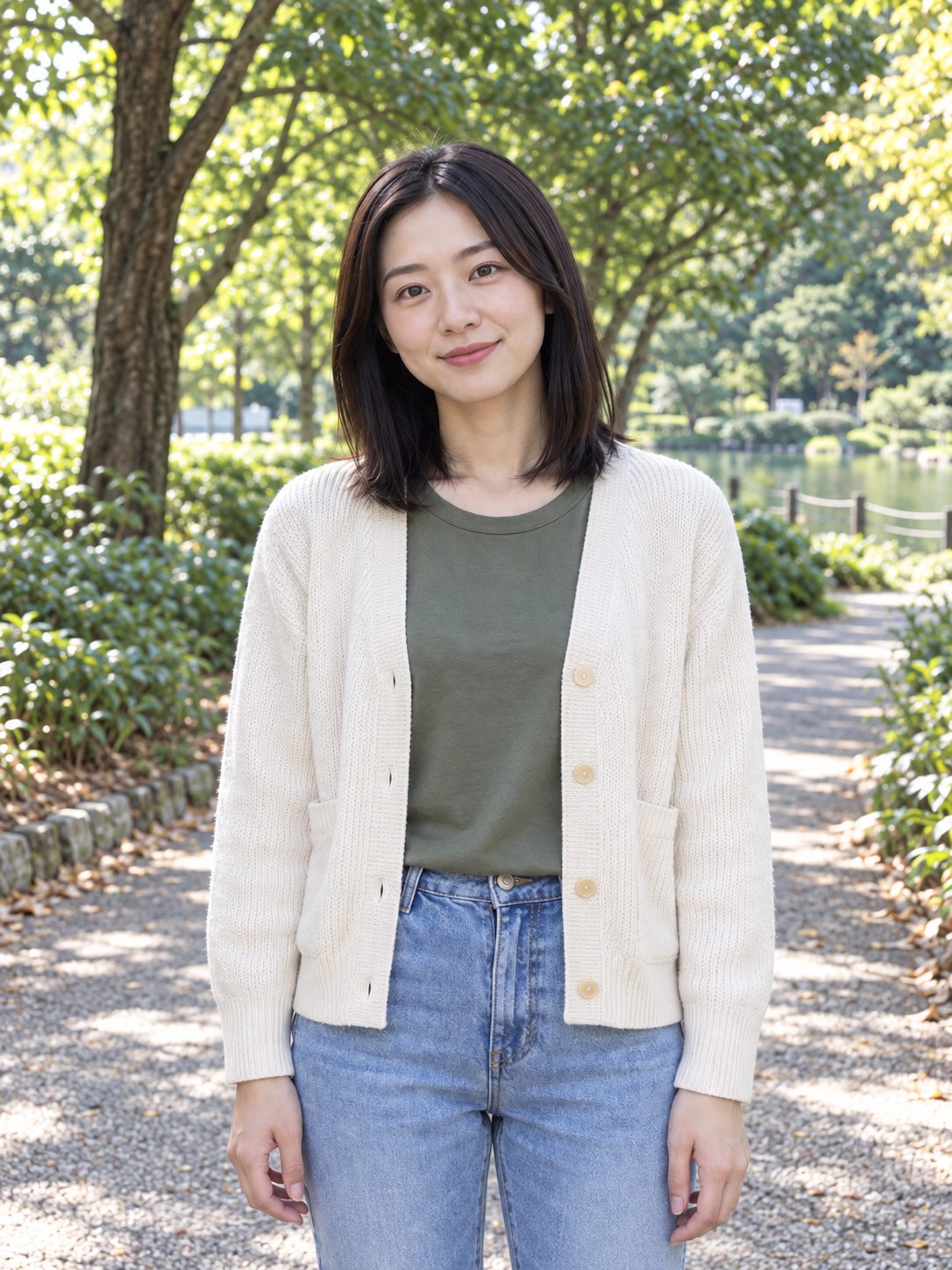
Person photo
Generated example · Play with sound
A real test using the default portrait. The example audio is in English; changing the interface language does not translate it. Review captions, mouth timing and identity.
Put a face to your next episode idea
AI Podcast Video creates a short studio-style host performance from one portrait and either a written line or recorded speech. It is a way to explore how an episode opening looks and sounds before producing a longer piece.
A host, a desk and a microphone
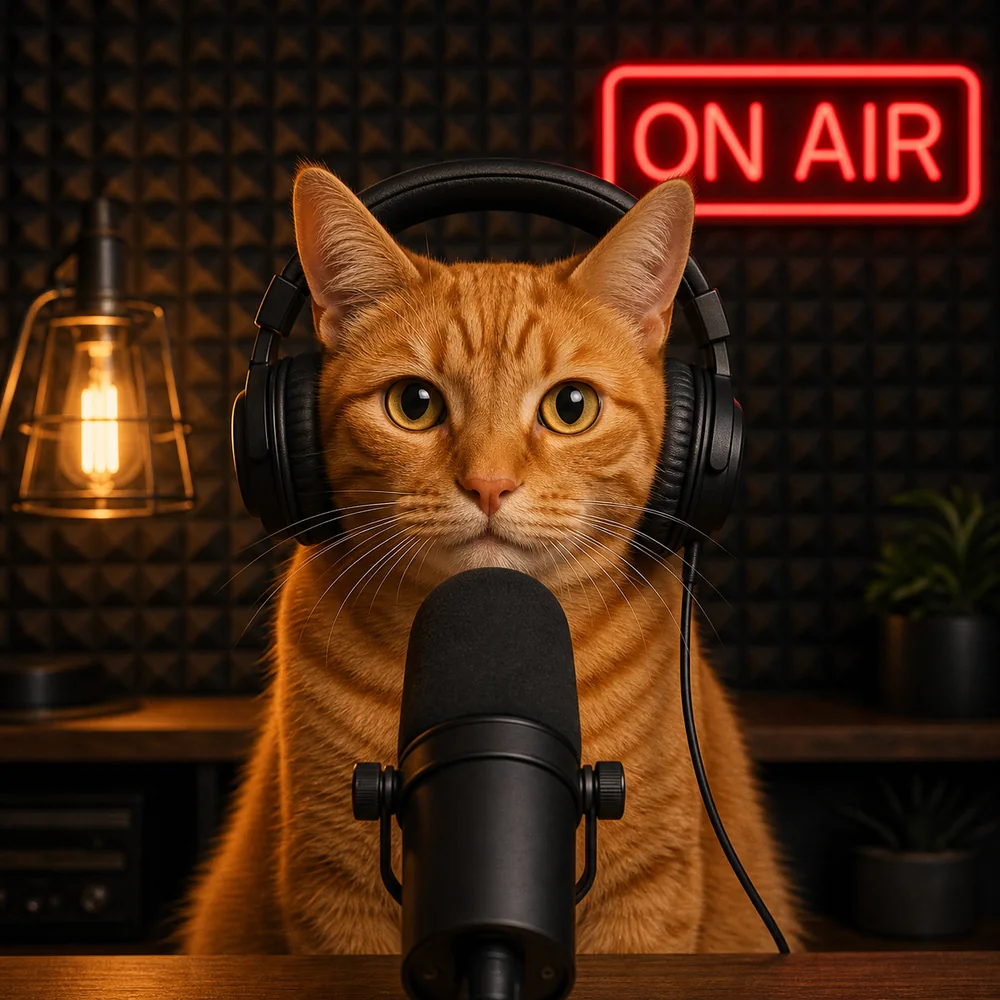
The effect is directed to place the same person at a desk in a warmly lit studio, with a microphone beside the mouth. You do not need to photograph the person in an existing podcast studio to try the scene.
Speech drives the short performance
Supply a concise script for generated speech or upload your own spoken excerpt. The intended shot has one presenter, a stable medium close-up and conversational gestures, giving the opening line a clear visual focus.
An opening rather than an entire episode
Use the result as a short introduction or concept preview. This workflow does not assemble a long podcast, alternate between guests or edit a sequence of interviews; those parts belong in a separate production workflow.
Give the teaser a specific job
A useful teaser tells the viewer what they will hear next. Decide whether you are announcing an upcoming topic, introducing a host or drawing attention to one idea from an existing recording.
Announce the next conversation
When planning an episode, write an opening such as “Today, we’re looking at what makes a great first question.” Use the reviewed clip at the start of an announcement post, with episode details in the accompanying copy.
Preview an idea from recorded speech
When you already have a host recording, choose a self-contained 1–10 second sentence. Place the short visual teaser beside the episode link so viewers can hear the topic without mistaking the clip for the complete discussion.
Introduce a new show or recurring segment
When defining a show’s presentation, try one brief host introduction. Use the draft in a creative review or as a candidate opening for your wider edit, then judge whether the generated setting fits the intended tone.
Write for one host and one clear thought
The studio supplies visual context; the words still need to tell the viewer why the next few seconds matter. A conversational line is usually easier to evaluate than a dense summary.
Name the subject early
Put the episode’s central idea near the beginning. Avoid spending the whole clip on greetings, a long show title and several guest names. A simple question or observation leaves more room for natural delivery.
Use the recorded performance when available
Upload MP3, WAV or FLAC speech of 1–10 seconds and up to 20 MB. Select a single speaker with a clean ending. Overlapping conversation makes it harder to judge whether one visible host fits what is being heard.
Treat text mode as a spoken draft
Enter no more than 180 characters and choose 5, 8 or 10 seconds. Read the line at a relaxed pace before generating. Text mode creates speech; it does not infer or clone the host’s real voice from the portrait.
Build a short studio introduction
You can begin with the included portrait and default line, then change the host and message separately to explore your own episode opening.
Choose the person to present
Use one clear adult portrait in JPG, PNG or WebP. Keep the whole face visible and avoid an object covering the mouth. The source photo supplies the person’s appearance while the model creates the studio scene.
Set the message and review the quote
Choose written text or recorded speech. Audio duration selects the smallest fitting tier; text mode has selectable durations. Confirm that the chosen line, portrait and credit quote are the ones you intend to use.
Review the host and the sound together
Play the completed clip with sound before downloading. Check that the microphone does not obscure the lips, the spoken line ends clearly and the face stays recognizable. Use the reviewed result in your teaser or opening edit.
Judge the scene as well as the sentence
The example shows a real generated test, not a guarantee of how every portrait will look. Review composition and delivery together before settling on a version.
Leave the face as the main reference
A clear portrait with even lighting gives you a useful comparison when inspecting the result. The model may change clothing or facial details, so do not judge likeness from a single paused frame alone.
Check microphone placement
The intended microphone sits beside the mouth, but the prototype can place it over the lips or alter the room unexpectedly. Watch the full shot for occlusion and distracting movement around the face or hands.
Keep the introduction concise
A short clip has room for an invitation into the episode, not its full argument. Put long titles, publication information and links outside the generated footage; unwanted or garbled text can still appear in model output.
Match the workflow to the delivery
The studio effect is useful when the podcast setting carries meaning. If the goal is a personal message or a musical performance, a different scene may better serve the material.
Keep the original photo setting
AI Talking Photo is directed to retain the source background for a greeting, lesson introduction or direct-to-camera update. Choose it when a studio desk would distract from the message.
Use rhythmic vocals
AI Rap Video Generator animates one person to a supplied rap recording. Choose it for a performed verse excerpt rather than trying to turn a spoken podcast line into a musical delivery.
Frequently asked questions
What each input controls and what to check before using the result.